Zones
Zones allow you to define a specific area of the frame and apply additional filters for object types so you can determine whether or not an object is within a particular area. Presence in a zone is evaluated based on the bottom center of the bounding box for the object. It does not matter how much of the bounding box overlaps with the zone.
For example, the cat in this image is currently in Zone 1, but not Zone 2.
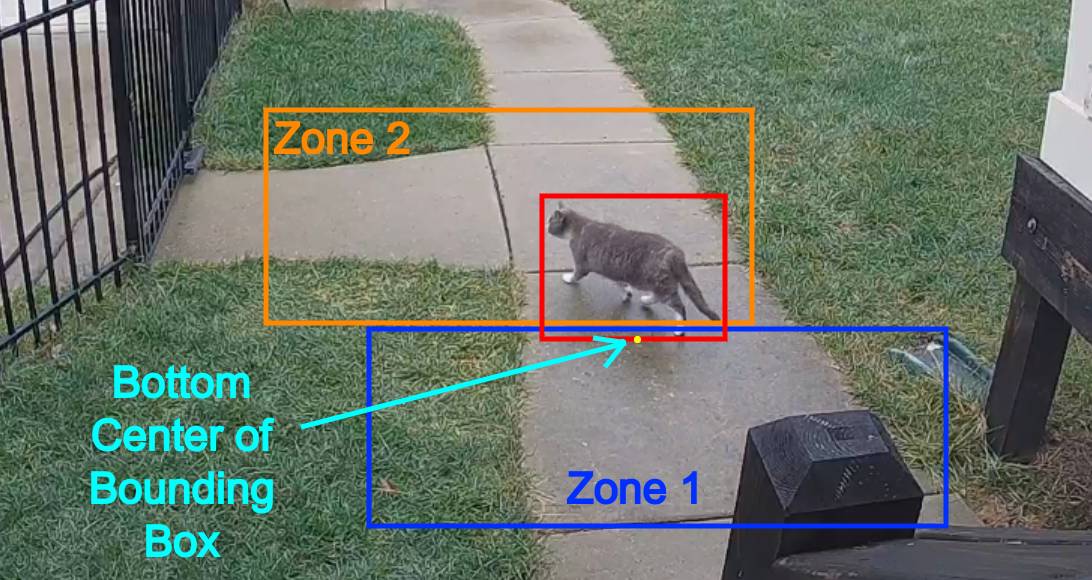
Zones cannot have the same name as a camera. If desired, a single zone can include multiple cameras if you have multiple cameras covering the same area by configuring zones with the same name for each camera.
Enabling/Disabling Zones
Zones can be toggled on or off without removing them from the configuration. Disabled zones are completely ignored at runtime - objects will not be tracked for zone presence, and zones will not appear in the debug view. This is useful for temporarily disabling a zone during certain seasons or times of day without modifying the configuration.
During testing, enable the Zones option for the Debug view of your camera so you can adjust as needed. The zone line will increase in thickness when any object enters the zone.
Creating a Zone
- Frigate UI
- YAML
- Navigate to Settings→Camera configuration→Masks / Zones and select the desired camera.
- Under the Zones section, click the plus icon to add a new zone.
- Click on the camera's latest image to create the points for the zone boundary. Click the first point again to close the polygon.
- Configure zone options such as Name, Objects, Loitering Time, and Inertia in the zone editor.
- Press Save when finished.
Follow the steps for creating a mask, but use the zone section of the web UI instead. Alternatively, define zones directly in your configuration file:
cameras:
  name_of_your_camera:
    zones:
      entire_yard:
        friendly_name: Entire yard
        coordinates: 0.123,0.456,0.789,0.012,...
Restricting alerts and detections to specific zones
Often you will only want alerts to be created when an object enters areas of interest. This is done by combining zones with required zones for review items.
To create an alert only when an object enters the entire_yard zone:
- Frigate UI
- YAML
Navigate to Settings→Camera configuration→Review.
| Field | Description |
|---|---|
| Alerts config > Required zones | Set to entire_yard so an object must enter that zone to be considered an alert; leave empty to allow alerts anywhere in the frame. |
cameras:
  name_of_your_camera:
    review:
      alerts:
        required_zones:
          - entire_yard
    zones:
      entire_yard:
        friendly_name: Entire yard # You can use characters from any language text
        coordinates: ...
You may also want to filter detections to only be created when an object enters a secondary area of interest. For example, to trigger alerts when an object enters the inner area of the yard (an inner_yard zone) but detections when an object enters the edge of the yard (an edge_yard zone):
- Frigate UI
- YAML
Navigate to Settings→Camera configuration→Review.
| Field | Description |
|---|---|
| Alerts config > Required zones | Set to inner_yard so an object must enter that zone to be considered an alert; leave empty to allow alerts anywhere in the frame. |
| Detections config > Required zones | Set to edge_yard so an object must enter that zone to be considered a detection; leave empty to allow detections anywhere in the frame. |
cameras:
  name_of_your_camera:
    review:
      alerts:
        required_zones:
          - inner_yard
      detections:
        required_zones:
          - edge_yard
    zones:
      edge_yard:
        friendly_name: Edge yard # You can use characters from any language text
        coordinates: ...
      inner_yard:
        friendly_name: Inner yard # You can use characters from any language text
        coordinates: ...
Restricting snapshots to specific zones
To only save snapshots when an object enters a specific zone, for example an entire_yard zone:
- Frigate UI
- YAML
- Navigate to Settings→Camera configuration→Snapshots and select your camera.
- Set Required zones to
entire_yard
- Set Required zones to
cameras:
  name_of_your_camera:
    snapshots:
      required_zones:
        - entire_yard
    zones:
      entire_yard:
        friendly_name: Entire yard
        coordinates: ...
Restricting zones to specific objects
Sometimes you want to limit a zone to specific object types to have more granular control of when alerts, detections, and snapshots are saved. The following example limits one zone to person objects and the other to cars.
- Frigate UI
- YAML
- Navigate to Settings→Camera configuration→Masks / Zones and select the desired camera.
- Create a zone named
entire_yardcovering everywhere you want to track a person.- Under Objects, add
person
- Under Objects, add
- Create a second zone named
front_yard_streetcovering just the street.- Under Objects, add
car
- Under Objects, add
cameras:
  name_of_your_camera:
    zones:
      entire_yard:
        coordinates: ... (everywhere you want a person)
        objects:
          - person
      front_yard_street:
        coordinates: ... (just the street)
        objects:
          - car
Only car objects can trigger the front_yard_street zone and only person can trigger the entire_yard. Objects will be tracked for any person that enter anywhere in the yard, and for cars only if they enter the street.
Zone Loitering
Sometimes objects are expected to be passing through a zone, but an object loitering in an area is unexpected. Zones can be configured to have a minimum loitering time after which the object will be considered in the zone.
When using loitering zones, a review item will behave in the following way:
- When a person is in a loitering zone, the review item will remain active until the person leaves the loitering zone, regardless of if they are stationary.
- When any other object is in a loitering zone, the review item will remain active until the loitering time is met. Then if the object is stationary the review item will end.
- Frigate UI
- YAML
- Navigate to Settings→Camera configuration→Masks / Zones and select the desired camera.
- Edit or create the zone (e.g.,
sidewalk).- Set Loitering Time to the desired number of seconds (e.g.,
4) - Under Objects, add the relevant object types (e.g.,
person)
- Set Loitering Time to the desired number of seconds (e.g.,
cameras:
  name_of_your_camera:
    zones:
      sidewalk:
        loitering_time: 4 # unit is in seconds
        objects:
          - person
Zone Inertia
Sometimes an objects bounding box may be slightly incorrect and the bottom center of the bounding box is inside the zone while the object is not actually in the zone. Zone inertia helps guard against this by requiring an object's bounding box to be within the zone for multiple consecutive frames.
- Frigate UI
- YAML
- Navigate to Settings→Camera configuration→Masks / Zones and select the desired camera.
- Edit or create the zone (e.g.,
front_yard).- Set Inertia to the desired number of consecutive frames (e.g.,
3)
- Set Inertia to the desired number of consecutive frames (e.g.,
cameras:
  name_of_your_camera:
    zones:
      front_yard:
        inertia: 3
        objects:
          - person
There may also be cases where you expect an object to quickly enter and exit a zone, like when a car is pulling into the driveway, and you may want to have the object be considered present in the zone immediately:
- Frigate UI
- YAML
- Navigate to Settings→Camera configuration→Masks / Zones and select the desired camera.
- Edit or create the zone (e.g.,
driveway_entrance).- Set Inertia to
1
- Set Inertia to
cameras:
  name_of_your_camera:
    zones:
      driveway_entrance:
        inertia: 1
        objects:
          - car
Speed Estimation
Frigate can be configured to estimate the speed of objects moving through a zone. This works by combining data from Frigate's object tracker and "real world" distance measurements of the edges of the zone. The recommended use case for this feature is to track the speed of vehicles on a road as they move through the zone.
Your zone must be defined with exactly 4 points and should be aligned to the ground where objects are moving.
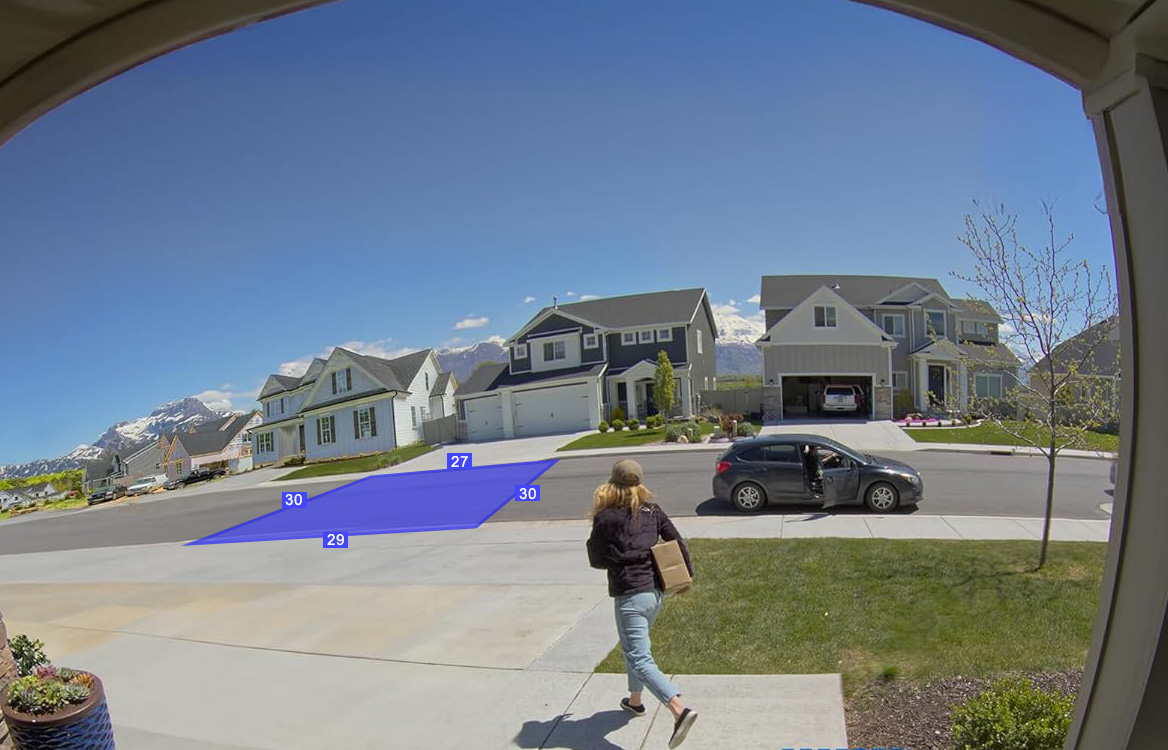
Speed estimation requires a minimum number of frames for your object to be tracked before a valid estimate can be calculated, so create your zone away from places where objects enter and exit for the best results. The object's bounding box must be stable and remain a constant size as it enters and exits the zone. Your zone should not take up the full frame, and the zone does not need to be the same size or larger than the objects passing through it. An object's speed is tracked while it passes through the zone and then saved to Frigate's database.
Accurate real-world distance measurements are required to estimate speeds. These distances can be specified through the distances field. Each number represents the real-world distance between consecutive points in the coordinates list. The fastest and most accurate way to configure this is through the Zone Editor in the Frigate UI.
- Frigate UI
- YAML
- Navigate to Settings→Camera configuration→Masks / Zones and select the desired camera.
- Create or edit a zone with exactly 4 points aligned to the ground plane.
- In the zone editor, enable Speed Estimation and enter the real-world Line A distance, Line B distance, Line C distance, and Line D distance between each pair of consecutive points.
- For example, if the distance between the first and second points is 10 meters, between the second and third is 12 meters, etc.
- Distances are measured in meters (metric) or feet (imperial), depending on the Unit system setting.
cameras:
  name_of_your_camera:
    zones:
      street:
        coordinates: 0.033,0.306,0.324,0.138,0.439,0.185,0.042,0.428
        distances: 10,12,11,13.5 # in meters or feet
So in the example above, the distance between the first two points ([0.033,0.306] and [0.324,0.138]) is 10. The distance between the second and third set of points ([0.324,0.138] and [0.439,0.185]) is 12, and so on.
The distance values are measured in meters (metric) or feet (imperial), depending on how unit_system is configured in your ui config:
- Frigate UI
- YAML
Navigate to Settings→System→UI.
| Field | Description |
|---|---|
| Unit system | Set to metric (kilometers per hour) or imperial (miles per hour) |
ui:
  # can be "metric" or "imperial", default is metric
  unit_system: metric
The average speed of your object as it moved through your zone is saved in Frigate's database and can be seen in the UI in the Tracked Object Details pane in Explore. Current estimated speed can also be seen on the debug view as the third value in the object label (see the caveats below). Current estimated speed, average estimated speed, and velocity angle (the angle of the direction the object is moving relative to the frame) of tracked objects is also sent through the events MQTT topic. See the MQTT docs.
These speed values are output as a number in miles per hour (mph) or kilometers per hour (kph). For miles per hour, set unit_system to imperial. For kilometers per hour, set unit_system to metric.
Best practices and caveats
- Speed estimation works best with a straight road or path when your object travels in a straight line across that path. Avoid creating your zone near intersections or anywhere that objects would make a turn.
- Create a zone where the bottom center of your object's bounding box travels directly through it and does not become obscured at any time.
- A large zone can be used (as in the photo example above), but it may cause inaccurate estimation if the object's bounding box changes shape (such as when it turns or becomes partially hidden). Generally it's best to make your zone large enough to capture a few frames, but small enough so that the bounding box doesn't change size as it enters, travels through, and exits the zone.
- Depending on the size and location of your zone, you may want to decrease the zone's
inertiavalue from the default of 3. - The more accurate your real-world dimensions can be measured, the more accurate speed estimation will be. However, due to the way Frigate's tracking algorithm works, you may need to tweak the real-world distance values so that estimated speeds better match real-world speeds.
- Once an object leaves the zone, speed accuracy will likely decrease due to perspective distortion and misalignment with the calibrated area. Therefore, speed values will show as a zero through MQTT and will not be visible on the debug view when an object is outside of a speed tracking zone.
- The speeds are only an estimation and are highly dependent on camera position, zone points, and real-world measurements. This feature should not be used for law enforcement.
Speed Threshold
Zones can be configured with a minimum speed requirement, meaning an object must be moving at or above this speed to be considered inside the zone. Zone distances must be defined as described above.
- Frigate UI
- YAML
- Navigate to Settings→Camera configuration→Masks / Zones and select the desired camera.
- Edit or create the zone with distances configured.
- Set Speed Threshold to the desired minimum speed (e.g.,
20) - The unit is kph or mph, depending on the Unit system setting
- Set Speed Threshold to the desired minimum speed (e.g.,
cameras:
  name_of_your_camera:
    zones:
      sidewalk:
        coordinates: ...
        distances: ...
        inertia: 1
        speed_threshold: 20 # unit is in kph or mph, depending on how unit_system is set (see above)